Connect to Azure Virtual Machine using Azure Active Directory Account
-
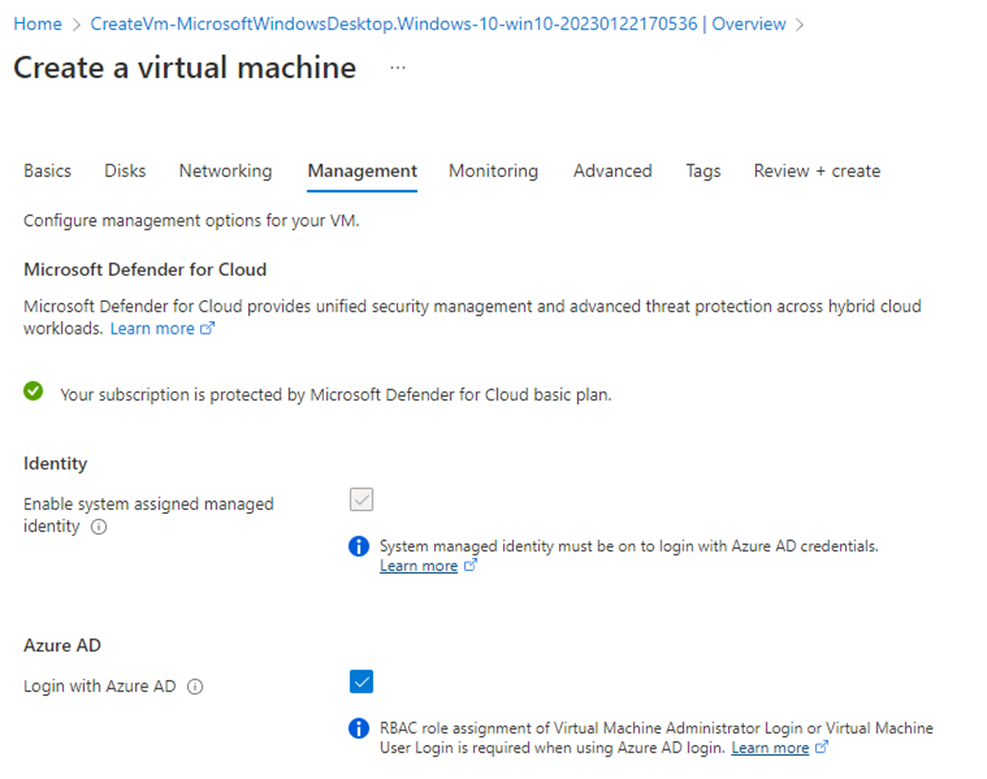
Deploy your favorite VM that Supports login using Azure Active Directory credentials, selecting the option Login with Azure AD, and then Enable system assigned managed identity will be selected automatically.
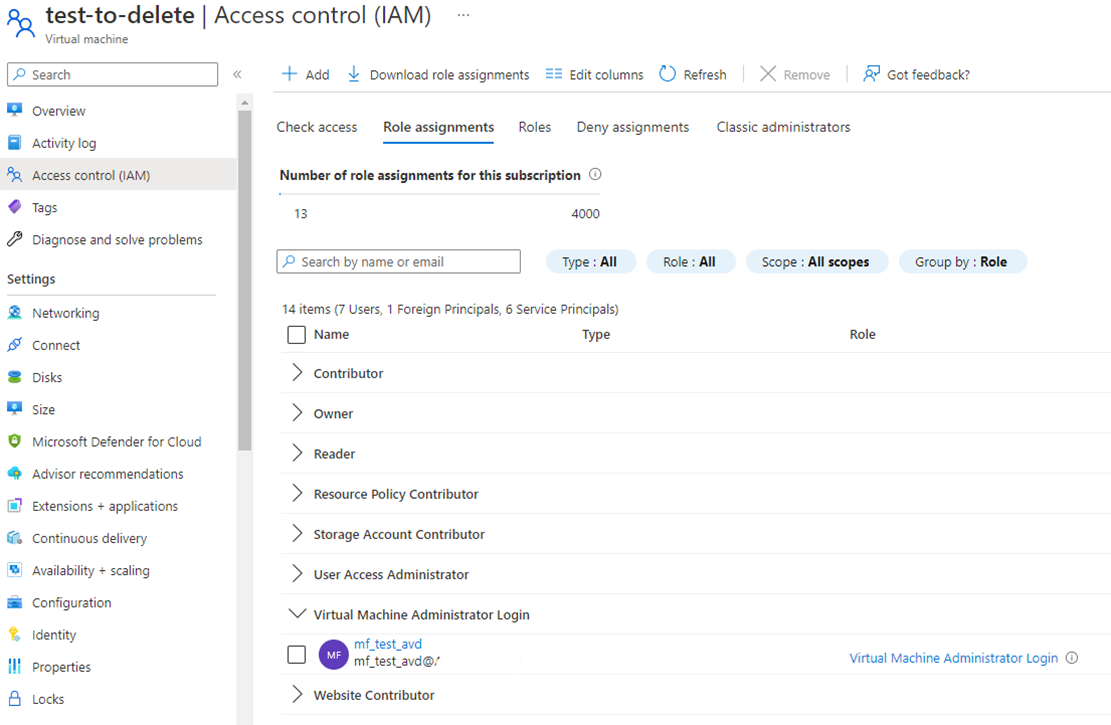
In the IAM of the Virtual Machine (or Resource Group, Subscription, and finally Management Group), add one of the options:
- Virtual Machine Administrator Login
- Virtual Machine User Login
against the user you would like to use to log in.
-
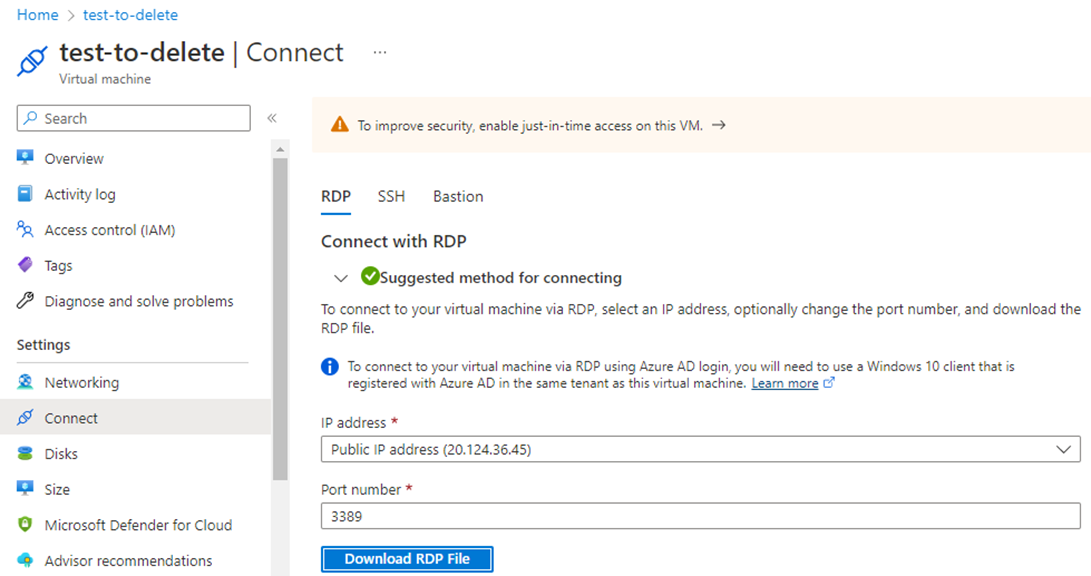
Download an RDP file that can connect to the VM
-
Edit the downloaded file using notepad, adding two lines:
authentication level:i:2
enablecredsspsupport:i:0
So the whole file should look like this:
full address:s:20.124.36.45:3389
prompt for credentials:i:1
administrative session:i:1
authentication level:i:2
enablecredsspsupport:i:0
-
Disable NLA (Network Level Authentication) on the VM using the Run command:
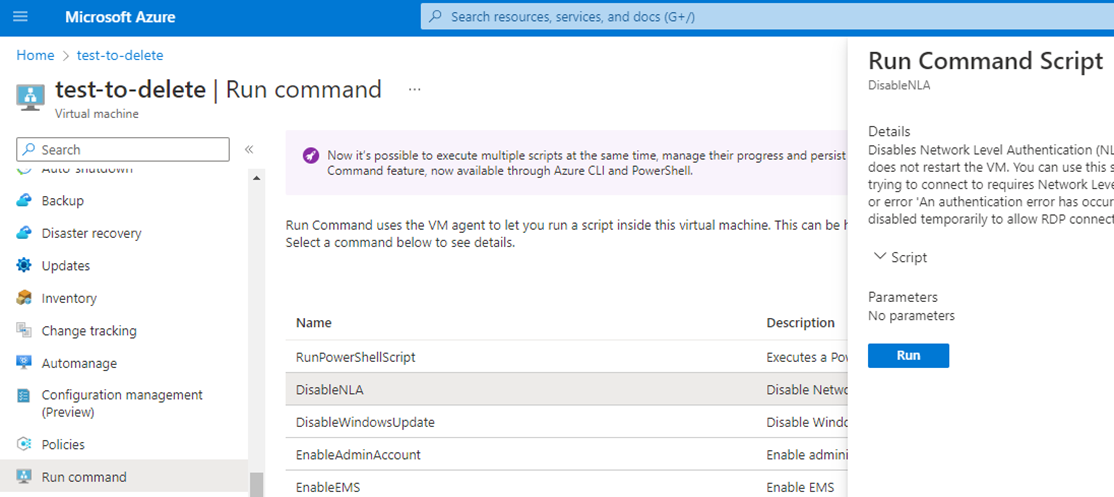
- Restart the VM.
-
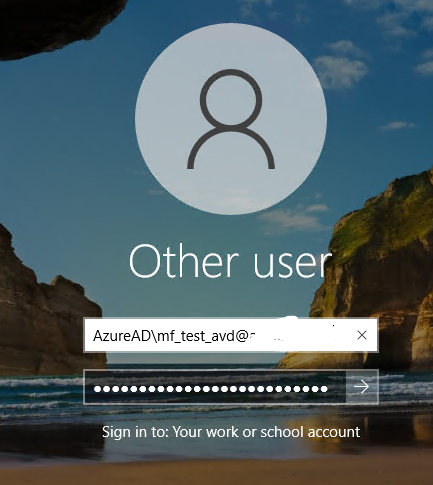
Double-click on the file and connect to the VM using Azure Active Directory credentials; please add AzureAD\ before the username.
You should see the following screen to enter the credentials:
-
If you see the message:
The Sign-in method you’re trying to use isn’t allowed. For more info, contact your network administrator.
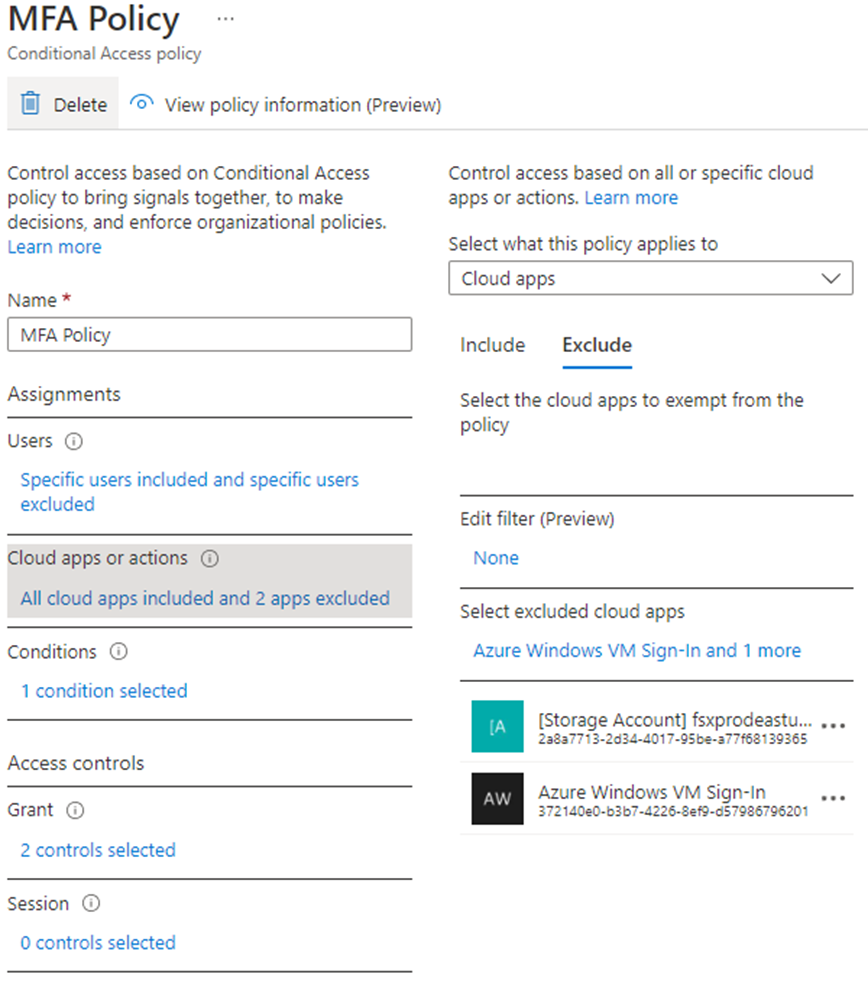
You must relax the Conditional Access methods by adding Azure Windows VM Sign-In to the excluded apps.